Showing posts with label internet. Show all posts

Monday, March 9, 2009

Change Your IP in windows xp

0 comments
1.Goto start>>run>>type 'command' and hit enter

Now you will get an MSDOS prompt screen.

2. Type "ipconfig /release" and hit enter
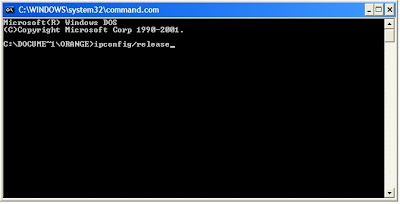


3. close the prompt

4. Right-click on "Network Places"

5. Select "properties"

Now you will get a screen titled "Local Area Connection"
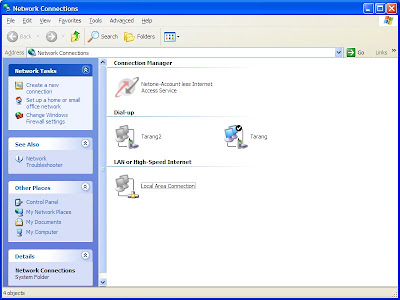


6. Right click on "Local Area Connection" and select "properties"
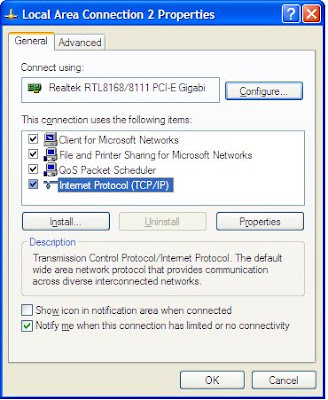


7. Double-click on the "Internet Protocol (TCP/IP)" from the list under the "General" tab

8. Select "Use the following IP address" under the "General" tab
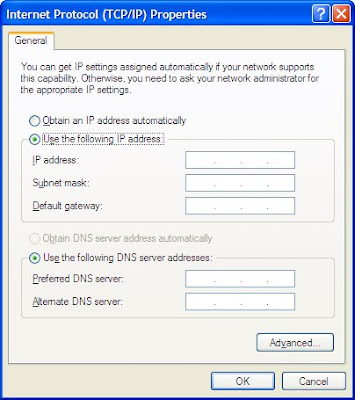


9. Create an IP address by typing any numbers.

10. Press "Tab" and it should automatically fill in the "Subnet Mask".

11. CLick 'Ok' button.

12. Again click 'ok'

now you will be back to the "Local Area Connection" screen.

13. Right-click back on "Local Area Connection" and go to properties again.

14. Go back to the "TCP/IP" settings.

15. Select "Obtain an IP address automatically".

16. Click 'Ok' button.

17. Click 'Ok' button.


Now you have a new IP address.


Note:

This only changes your dynamic IP address.

Monday, April 21, 2008

Scheduling Connecting And Disconnecting From Your ISP

0 comments
With many ISPs using PPPoE-based connections, and many ISPs havingawkward schemes such as night-unlimited it’s a good idea to schedule your dialling process rather than staying up late at night.Once connected, your downloads canstart. You can also schedule to connect to VPNs.


First we create a batch file. Start Notepad (or any other text editor). Enter the following:
RASDIAL

should be your exact connection name. Save the file using a suitable name such as“DIALNET.BAT”.
Now create a schedule by clicking on Scheduled Tasks in the Control Panel. Double-click on Add Scheduled Task. Click Next. Browse and choose the path of the BAT file. Choose the type of
frequency you want the task to run at.Next set the time and date. Finally enter the password for the account running the dialler. You can further make changes to the schedule by right clicking on the newly-created scheduled task and clicking on Properties.

So why would you want to make changes? Well, many more settings can be applied, and multiple schedules can be allotted. Say you connect between 12 and 8 AM,and then you want it to connect at 1 PM again. Such options are available only once you’re done adding the schedule through the Wizard.Similar to scheduling a connection, disconnection can be done in the same manner. Some alterations in the batchfile creation are needed. First, create anew text file and enter
RASDIAL
/disconnect
Save the file as a BAT file, for
example,“DISC-NET.BAT”.Be sure to enter your exact connection name in place of. Once again, like the connection schedule, create a schedule in the same manner only this time choose the Disconnecting BAT file.
 

Copyright 2008 All Rights Reserved Revolution Two Church theme by Brian Gardner Converted into Blogger Template by Bloganol dot com